Setting up Calendly
What is Calendly
Calendly is a web app that allows you to share a booking link so clients/suppliers can view your availability (synced with your celandar) and book a meeting/call with you.
If you calendar does not show availability (as you have another meeting at that time, your are booked as busy/off or you have settings as not available), then no meeting can be booked.
This allows granular control of when people can book a call with you, but also allows users to book a call convenient to them.
How to Set up a Calendly Account
Below are the steps required to set up your Calendly account.
Visit: https://calendly.com/ and select ‘Get Started’.
Select sign up with your Microsoft account.
Once that is complete, follow the below settings on each step:
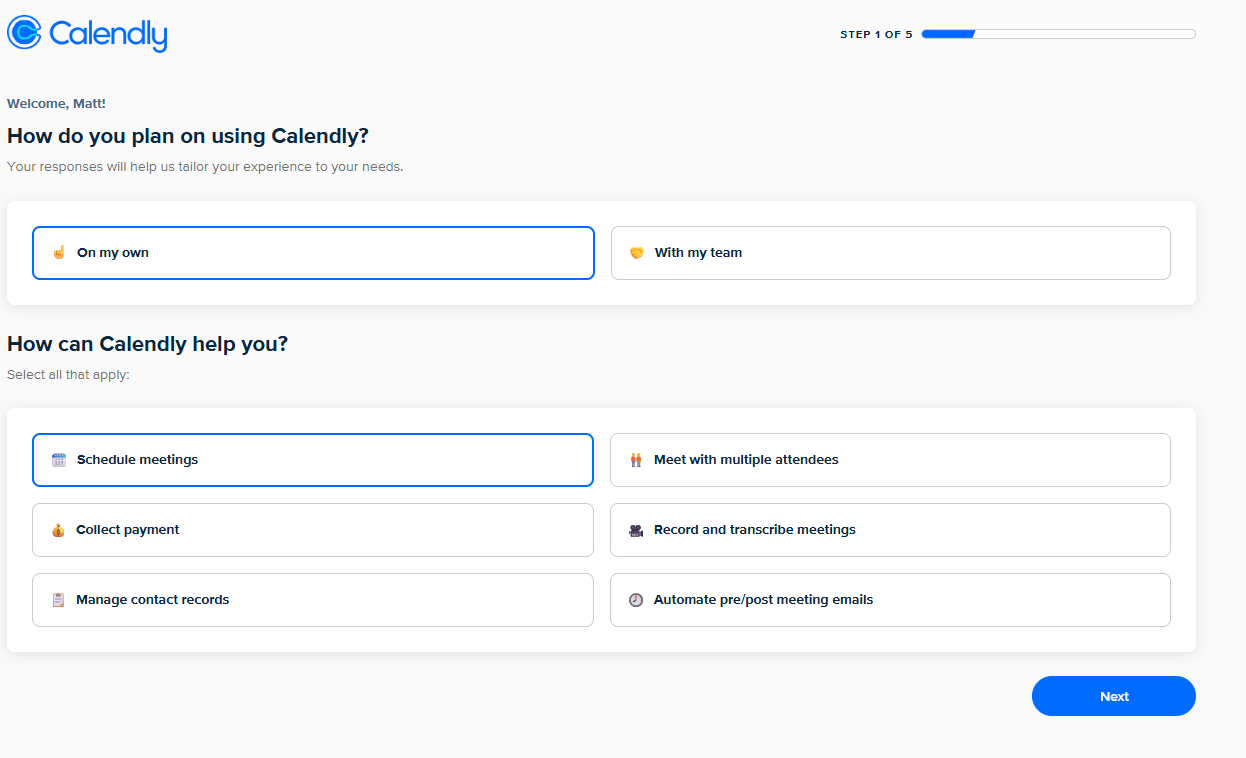

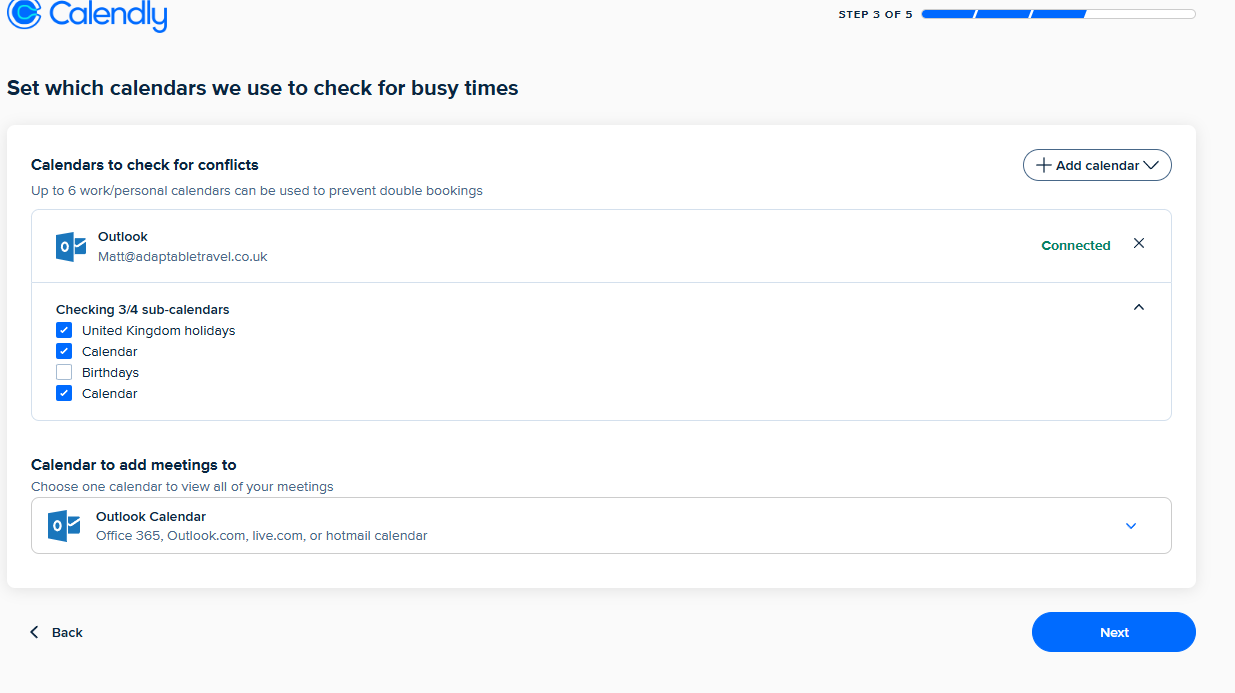
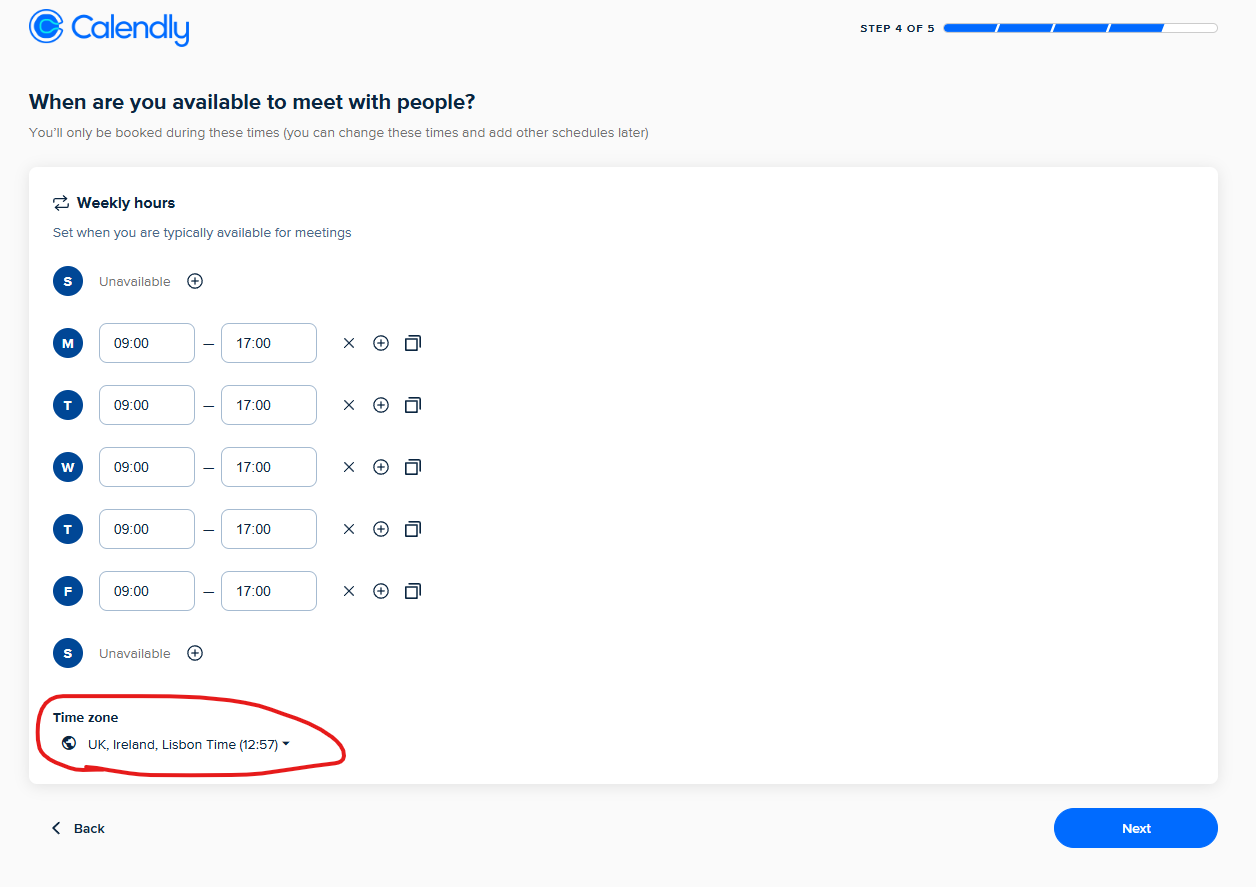
Set the time zone and hours
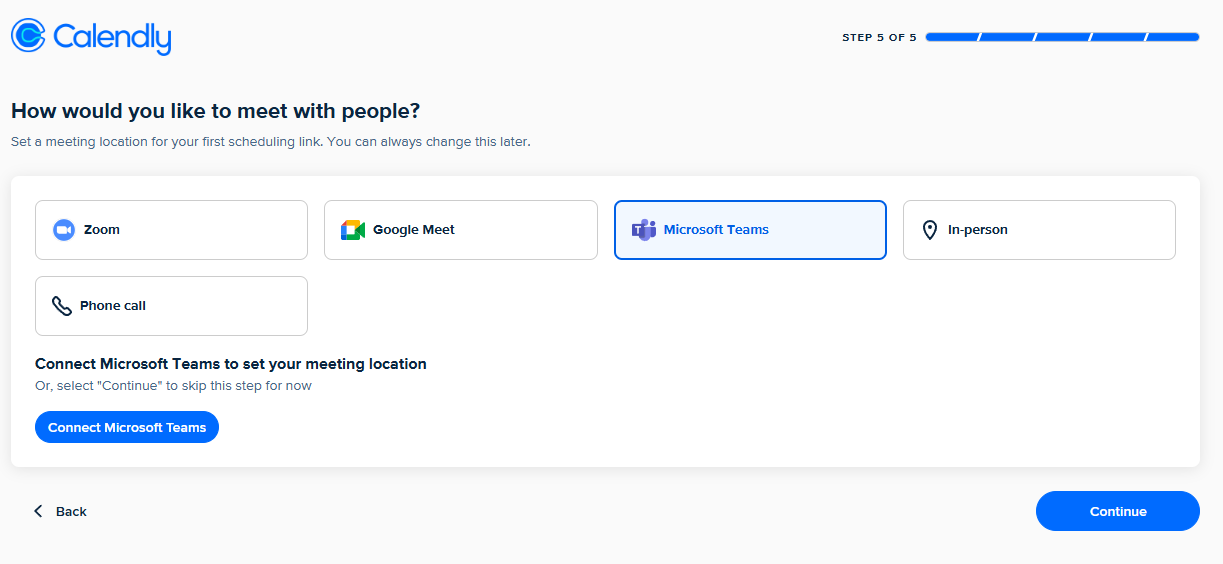
Select how users should call.
Select Microsoft Teams.
This will then create a video/call inside the calendar invite.
Once the account is created - we can then create your event to share.
How to Set Up Events
Click '+Create' and select 'One-on-one'.

Create the meeting as follows:
Name: 30 Minute Meeting
Duration: 30 minutes
Location: MS Teams
Avallability: Set your availability. Top tip, set it Mon-Fri, 9am - 5pm. Try to be available when teachers are likely to be available (lunch time, after 3pm etc) but also create some blackout times when you are not available.*
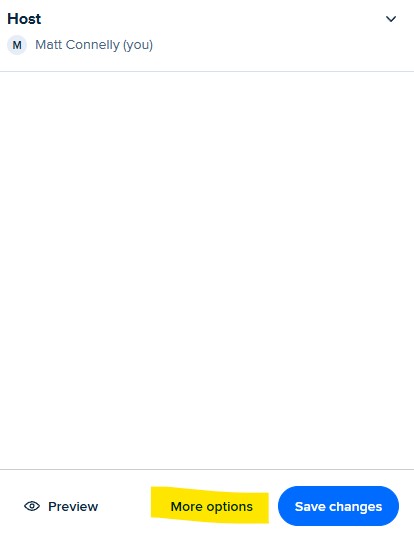
Click 'More Options'
In the 'Description' add:
"Book a short call to discuss your trip.
I will be happy to assist with itinerary planning, discuss accommodation and travel options and more."
This is the field that appears on the meeting booking page.
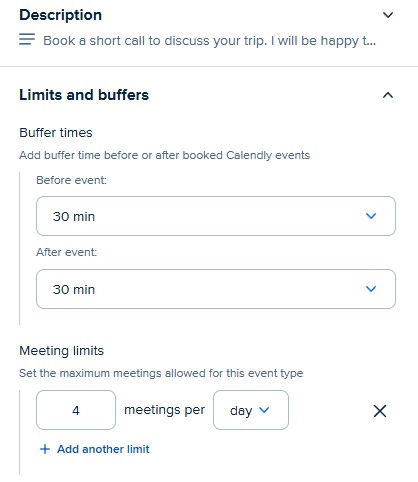
Limits and buffer:
Add 30mins before and after, and set max 4 meetings per day.
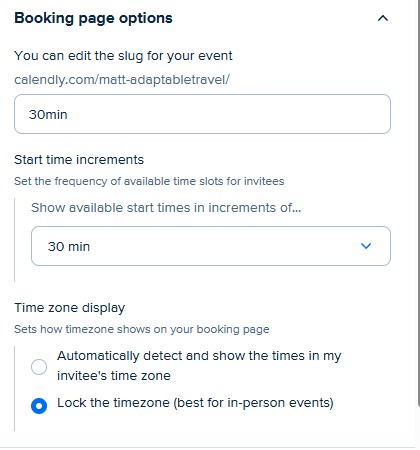
Booking page options:
Select 30mins.
For the 'Invitee form' add questions as follows:
+Question 1:
What do you want to discuss on our call, to help me prepare in advance?
Multiple lines: On
+Question 2:
School Name

Select 'Save changes'.
*You can block out time on your calendar in Microsoft calendar, whether that is annual leave, meetings or focus time. So, if you have a meeting or event in your MS Calendar, this will block meetings from being blocked in Calendly. Therefore, use your MS calendar to control availability in Calendly (so you dont have to keep going into Calendly to adjust availability).
Adding to Qwilr
Add the Calendly booking link to your Qwilr welcme block.
Click 'Copy Link' in Calendly.

Open Qwilr and click 'Library' > 'Blocks'.
Find your 'ABOUT / [name] block(s) and add in the following (you can find Alex's block as an example):
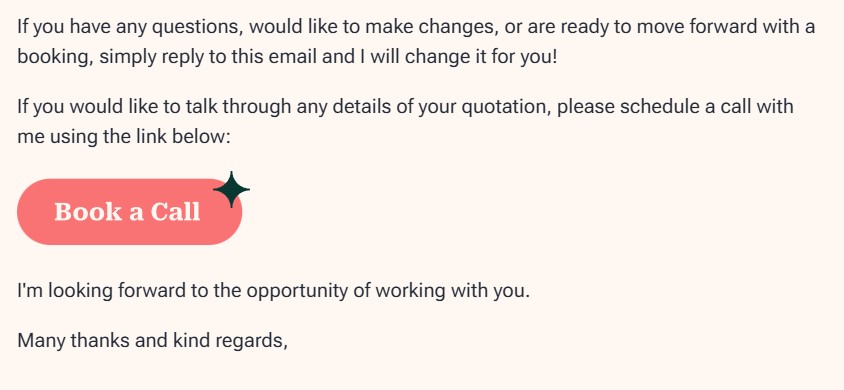
Email signature
You should also share and update your email signature for when sending a quote, so the email itself includes a link to the Calendly booking.
